Contents
- Overview
- Find Quickie
- Key features
- List
Welcome to the Quickie user guide. This guide will help you navigate and make the most of Quickie's features for managing Zendesk tickets efficiently.
-
Initial troubleshooting guide: Troubleshooting app loading issues in Zendesk
Find solutions and helpful tips for resolving common app loading problems.
Topics covered in this guide:
-
Overview
Get to know Quickie, your go-to tool for organizing Zendesk views, advanced ticket search, fast bookmarking, and real-time ticket monitoring. -
Find Quickie
Learn how to install and find the Quickie app. -
Key features
Discover how Quickie makes view management and ticket search easier. -
List
Set up and manage your folders and views just the way you like. -
View
See your saved search results as you would a regular view list. -
Seek
Master Seek's advanced search system for effortless ticket management. -
Bookmarks
Quickly access all your privately bookmarked tickets in your personal Bookmarks view. -
Activity
Easily find your ticket tabs and previously viewed tickets in one centralized location. -
Admin
Stay updated with app announcements, updates, and configuration options. -
Handy tools
Use the Home, Bookmark, Pin and New search buttons for a smoother workflow. -
Quickie in sidebars
See how Quickie appears in the ticket, user, and organization sidebars, and what tools are available in each. -
Solutions, tips, and tricks
Practical solutions and clever tricks that you can do with Quickie. -
Use cases
See how Quickie can make a difference across different departments. -
FAQs
Answers to common questions and troubleshooting tips. -
Conclusion
Key takeaways and next steps for an enhanced Zendesk experience.
Overview
Quickie brings advanced ticket search, efficient view management, quick bookmarking, and real-time ticket monitoring right into your Zendesk workflow.
You can get Quickie as part of Lovely Views or on its own. It helps you organize views into folders with the List tab and perform powerful ticket searches with the the Seek tab. These features make finding and managing tickets easier, improving your overall workflow.
Quickie also adds extra convenience with features like the dedicated Bookmarks tab for saving and accessing important tickets. The Activity tab lets you keep track of your active and previously viewed tickets, while the Admin tab provides essential app information, announcements, updates, and configuration options.
With easy-to-use Home, Bookmark and Pin buttons, Quickie makes ticket management a breeze, helping you stay organized and efficient.
Find Quickie
To install a trial of the app, please visit Lovestock & Leaf's Quickie page. Once installed, you can find Quickie in the top toolbar or sidebar in Zendesk.
Quickie in the top toolbar
1. Click the Quickie icon in Zendesk's top toolbar.
2. This will launch the Quickie app.
When Quickie is unpinned in the sidebar
1. Click Apps in Zendesk's right sidebar menu.
2. A new tab will appear showing all available apps. Scroll to find the Quickie app.
For more information on what Quickie looks like in the ticket, user, and organization sidebars, go to the Quickie in sidebars section.
When Quickie is pinned in the sidebar
1. Click the Quickie icon in Zendesk's right sidebar menu.
2. A new tab will appear showing the Quickie app.
For more information on what Quickie looks like in the ticket, user, and organization sidebars, go to the Quickie in sidebars section.
Key features
Dedicated tabs
Navigate easily using designated tabs: List for folder and views management, View for your saved search's ticket results, Seek for advanced search, Bookmarks for privately bookmarking important tickets, Activity for ticket tabs and previously viewed tickets, and Admin for preferences and announcements.
Organized views
Structure your views by organizing them into a folder hierarchy for enhanced management.
Advanced ticket search
Discover Seek's search capabilities and ensure instant identification of specific tickets in even the most extensive lists. Use order, conditions, and columns to tailor your search criteria. Manage and customize each criterion for a personalized search experience.
Save and reuse searches
Save your custom search criteria in Seek for quick future access. Retrieve saved searches in List > Views for consistent ticket management, with a View tab automatically opening to show the search's ticket results.
Fast bookmarking and easy access
Quickly retrieve privately flagged tickets of interest using the personal Bookmarks feature, now with its own dedicated tab.
Real-time ticket monitoring
Explore real-time insights into ongoing ticket interactions via the Activity tab, which lists ticket tabs and previously viewed tickets. This feature contributes to a more dynamic and organized workflow.
Essential information hub
The Admin tab serves as the go-to spot for vital app information, including announcements, updates, and configuration options. This ensures that users have easy access to essential details to stay informed and up-to-date.
Favorites at your fingertips
Individual agents can select their favorite views, which will then appear in a Favorites folder at the top of the views list. This feature provides agents with quick and easy access to the views they use most frequently, boosting their productivity.
Home view shortcut
Clicking the Home button automatically opens a designated view in Zendesk or a saved search in Seek, giving you instant access to your most important tickets or searches. This feature ensures a smoother workflow by bringing your preferred view or search to the forefront every time you use Quickie.
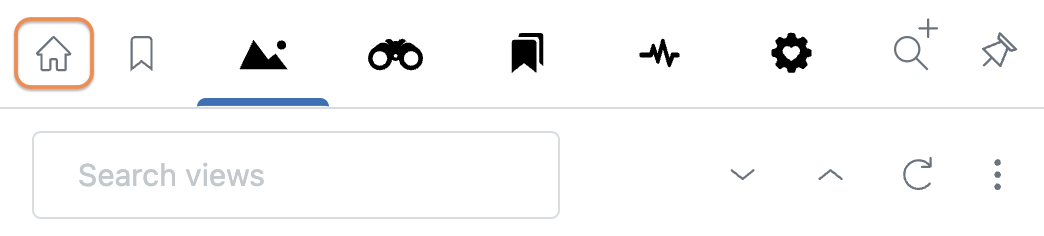
Quick bookmarking
Simplify your private bookmarking process with a Bookmark button on the left for easy access.
Handy pin feature
Keep Quickie open after clicking on a view or bookmark with the more visible Pin button on the right.
New search button
Quickly start a new search in Seek with a dedicated button, making it easier to refine results and find tickets faster.
Easy keyword search
Use the keyword search feature for swift and efficient location of views, bookmarks, and recently viewed tickets.
Make your Zendesk tasks easier with Quickie's practical features. From organizing views to advanced search options, Quickie helps you manage tickets more efficiently, making your daily workflow smoother and more productive.
List
Learn how to organize and customize your Zendesk views with Quickie’s practical tools. Structure views, create a hierarchy, and manage personal and shared views.
Access the List tab
Click the List tab located at the top of the Quickie interface.
You will see four main sections that you can expand or collapse.
Favorites: Easily access your most-used views or searches set as Favorites. You can also reorder them to match your preferred workflow.
Extra: Access profile views and, if enabled, Suspended and Deleted tickets (always available to admins).
Seek: Lets you run advanced searches and manage personal templates.
New search – Start a fresh search using Seek’s advanced conditions.
Search tabs– Show your current and recent unsaved searches, along with their search criteria. These are temporary and will disappear when the page is reloaded.
Personal templates – Reusable search setups for faster creation of new searches.
Views: Provides access to all folders, subfolders, and views, including saved searches listed under Personal › Searches.
Views - top menu
Show only my views – Filters the list to show only the views you own.
Add view – Opens Zendesk to create a new view.
Manage views – Opens Zendesk to edit or organize views.
Reload views list – Refreshes the list of views.
Download views list CSV – Exports the views list to a CSV file.
Views - folder menu
Rename folder – Change the folder’s name.
Move folder – Move the folder to a different location.
Merge folder – Combine the folder with another existing folder.
Views - individual saved search menu
Favorite – Adds the saved search to your Favorites section.
Set as Home view – Makes this saved search open when you click the Home button
Rename – Changes the saved search name.
Edit – Opens the saved search for editing in Seek.
Delete – Permanently removes the saved search.
Views - individual view menu
Favorite – Adds the view to your Favorites section.
Set as Home view – Makes this view open when you click the Home button.
Rename – Changes the view name.
Move to – Moves the view to another folder (new or existing).
Edit – Opens the view in Zendesk for editing.
Clone – Creates a copy of the view in Zendesk.
Delete – Permanently removes the view.
Navigate folders
Organize views into folders to simplify your workflow. Folders improve navigation, enhance collaboration, and keep your workspace tidy.
Click on a folder name to expand or collapse it.
Views are grouped into hierarchical folders based on naming conventions. You will also find special folders:
My profile
This contains four profile views: Requested, Assigned, CC'd and Followed. Find this folder in the Extra section if you have it enabled in List & Views settings.
Personal
This folder contains an agent's personal views and is available in the Views section when enabled in Views settings.
Misc
This folder holds views without a specific hierarchy; you can disable it or rename the folder via Views settings. Additionally, you can enable the option to display this folder or root level views at the bottom of the Views list.
Visibility depends on each agent's permissions. Admins have broader access and can see special views like Suspended and Deleted in the Extras section, whether or not these are enabled in the Views settings for other agents.
Next to each view name is the ticket count, with a grayed-out appearance for views without tickets.
Search a folder/view
Use the search box at the top to filter and search views, folders, Seek templates, or saved Seek searches.
You can also expand or collapse folders directly from the search results.
Expand all folders
Instantly open all view folders to see their contents at a glance. This is useful if you have multiple nested views and want to access them quickly without clicking each folder individually.
Collapse all folders
Closes all expanded folders in the Views tab, keeping your list compact and organized. This helps reduce clutter when working with a large number of views.
Refresh view counts (totals)
Updates the ticket counts displayed next to each view, ensuring you see the most up-to-date numbers. Use this if you suspect the counts are outdated or after making changes to your tickets.
Open a view
Clicking a view name takes you to the regular Zendesk view. Quickie closes when a view is opened, unless Quickie has been pinned using the Pin button.
More view options
There are additional options that allow you to filter views, adjust the interface, refresh data, and export your views list for external use.
Show only my views
This setting is visible to administrators and agents with roles permitting them to edit shared views. If a view is crucial for other agents but not within the current user's groups, selecting Show only my views will hide that view from the user's views list. It will reappear when the Show only my views option is deselected.
Click the kebab menu (︙) at the top of the Views section. Select Show only my views.
Admins can edit toggle access for agents via the Enable 'Show only my views' toggle option in List & Views settings.
Add view
Opens the Zendesk interface for creating a new view. From there, you can set conditions to filter tickets, choose which columns to display, and determine who can access the view. Once saved in Zendesk, the new view will automatically appear in Quickie.
Click the kebab menu (︙) at the top of the Views section. Select Add view.
Manage views
The Manage views shortcut allows you to access and modify your views directly in the Zendesk Admin Center. From there, you can create, edit, reorder, deactivate, or delete views to better organize your ticket workflow. This option is useful for admins or agents with the necessary permissions to customize views for their team.
Click the kebab menu (︙) at the top of the Views section. Select Manage views.
This opens the Views section in Zendesk Admin Center in a new tab.
From the Views list, you can:
-
- Create a new view by clicking Add view.
- Edit an existing view by selecting it from the list.
- Reorder views by dragging them into the preferred sequence.
- Deactivate or delete views as needed.
Any changes made in Zendesk Admin Center will be reflected in Quickie once the List tab is reloaded.
Reload views list
If your views have been updated, added, or removed in Zendesk, but the changes aren’t reflected in Quickie, use Reload views list to refresh and sync the latest view data without needing to reload the entire page.
Click the kebab menu (︙) at the top of the Views section. Select Reload views list.
Download views list CSV
The Download views list CSV option allows you to export a list of all your views in a CSV file. This is useful for documentation, auditing, or sharing with your team for reference. The exported file includes key details about each view for offline access.
Click the kebab menu (︙) at the top of the Views section. Select Download views list CSV.
Only views that are expanded and visible will be included in the download. To include all views in the CSV:
Expand every folder containing views you want to download.
Collapse any folders with views you don’t want to include.
For a complete list, use the Expand all button in the header before downloading.
Click Download now to save the CSV file.
Individual folder options
Quickie provides several options to help you manage and customize individual folders. These actions allow you to rename, move, or even merge folders based on your workflow needs.
Hover over a folder and click the kebab menu (︙) to see different actions you can take.
Rename folder
Update the folder name directly in Quickie to better reflect its contents or purpose. No need to use :: to set up a hierarchy - Quickie handles the folder structure for you automatically.
Move folder
Restructure your layout by moving folders to a new position within your Personal or Shared section. This helps organize related views under the right branches with just a couple of clicks.
Rules for moving
- Personal folders can only be moved within the Personal section.
- Shared folders can only be moved within the Shared section.
- You can create subfolders at any level within either section.
System folders that can’t be moved
Quickie system sections are fixed and cannot be moved:
Favorites (List > Favorites)
New search tabs (List > Seek)
Personal templates (List > Seek)
Extras (List > Extras) – e.g., My profile, Suspended tickets, Deleted tickets
Permission requirements
The ability to move folders depends on each agent’s Zendesk role.
- All agents can move and rename their own personal folders.
- To manage shared folders, an agent must have a custom role that allows editing views.
- Admins always have full access.
- If an agent lacks permissions, the Move to option appear.
Learn more about how Zendesk handles view categorization
Merge folder
Consolidate folders by merging one into another. All views from the source folder will be combined into the destination folder, reducing clutter and simplifying your view list.
Individual view options
Quickie provides several options to help you manage and customize individual views. These actions allow you to organize, modify, or remove views based on your workflow needs.
Hover over a view and click the kebab menu (︙) to see different actions you can take.
Favorite this view
Mark the view as a favorite for quick access. Favorited views appear at the top of the Views tab, over all the other sections.
1. Hover over a view, then click the kebab menu (︙) and select Favorite this view.
2. The chosen view moves to the Favorites section.
4. To remove a view from the Favorites section, hover over the view, click the kebab menu (︙) and select Remove from Favorites.
5. That particular view will no longer appear as a Favorite in your list.
Set as Home view
Designate a Home view or search with a house icon. Clicking the Home tab on Quickie will automatically open up the view on Zendesk or the saved search on Seek.
1. Hover over a view, click the kebab menu (︙), then select Set as Home view.
3. The chosen view now has a Home icon next to it.
4. Click the Home tab.
5. Zendesk will automatically open up your chosen Home view. Or, if you've set a saved Seek search as a Home view, Seek will automatically open up the search.
6. To undo the action, select over the view again, click the kebab menu (︙) and uncheck Set as Home view.
7. The Home icon will no longer appear next to that particular view or saved search on your list.
Rename
You can rename views directly within Quickie - no need to open Zendesk Admin Center or use :: to define folder structure.
How to rename
Hover over a view or folder, click the menu (︙), then select Rename.
Enter the new name and click Save.
That’s it - Quickie handles folder structure behind the scenes, so you don’t need to use :: or a view title separator.
Prefer the old way?
You can still rename views via Zendesk Admin Center if you prefer using :: for manual folder hierarchy.
Hover over a view, click the kebab menu (︙), then select Edit view.
-
Update the view name using this format:
Folder :: Subfolder :: View nameExample:
Consumer services :: Customer feedbackConsumer services :: Customer feedback :: General customer surveys
Save your changes. The updated name and folder hierarchy will appear in Quickie once the view list is reloaded.
Move to
Quickie includes a visual folder picker called Move to that
makes it easy to create and organize folder hierarchies - no need to use
the :: naming
convention anymore.Move to allows
you to:
- Move a view into another folder
- Create new folders (including nested ones)
- Build a custom folder structure - from scratch if needed
::.How to use Move to:
- Hover over a view, click the kebab menu (︙), then select Move to
-
In the Move to dialog:
- Click a folder to select it
- Or click + New folder to create a new one at that level
You can also click a folder to expand it and see its subfolders. If needed, you’ll see a + New folder option beneath it to create nested folders. Simply click a folder or subfolder to move your view into that location.
Rules for moving
- Personal views can only be moved within the Personal section.
- Shared views can only be moved within the Shared section.
- You can create subfolders at any level within either section.
Views that can’t be moved
Some views belong to system-generated sections and cannot be moved:
-
Favorites (found under List > Favorites)
To move a favorited view, find it in the List > Views section instead - New search tabs (under List > Seek)
- Personal templates (under List > Seek)
- Extra (under List > Extra) - e.g., My profile, Suspended tickets, Deleted tickets
- Saved searches (under List > Views > Personal > Searches)
Permission requirements
The ability to move views depends on each agent’s Zendesk role.
- All agents can move and rename their own personal views.
- To manage shared views, an agent must have a custom role that allows editing views.
- Admins always have full access.
- If an agent lacks permissions, the Move to option appear.
Learn more about how Zendesk handles view categorization
Edit
Edit views to customize descriptions, conditions, and formatting options. If using custom Roles, note that agents will need to be permitted to add and edit personal, group, and global views. Agents will receive an error message if not given the permission.
1. Hover over a view, click the kebab menu (︙), then select Edit view.
2. You will be taken to Zendesk Admin Center - Views, where you can edit the view's name, description, conditions, and formatting options. More information on editing a view can be found at Zendesk | Managing your views.
4. Scroll down and click Save after making changes.
5. Any changes made in Zendesk Admin Center will be reflected in Quickie once the views list is reloaded.
Clone
Create a duplicate of the view with the same conditions and settings, useful for making slight modifications while keeping the original view intact.
1. Hover over a view, click the kebab menu (︙), then select Clone view.
2. You will now have a copy of the original view via Zendesk Admin Center that you can rename, edit, or leave as is.
3. Scroll down and click Save after making changes.
4. Any changes made in Zendesk Admin Center will be reflected in Quickie once the views list is reloaded.
5. The copy will now appear on Quickie:
Deactivate
You have the option to delete or deactivate a view that is no longer required. Deactivating a view places it in the Inactive tab in the Views page on Zendesk, allowing for reactivation if necessary.
1. Hover over a view, click the kebab menu (︙), then select Edit view.
2. You will be taken to Zendesk Admin Center - Views.
3. Click More options next to the view title, then select Deactivate view.
5. You can find the deactivated view via the Inactive tab in the Views page on Zendesk.
6. To reactivate the view, click the kebab menu (︙), and then select Activate view.
7. Any changes made in Zendesk Admin Center will be reflected in Quickie once the views list is reloaded.
Delete
You have the option to delete or deactivate a view that is no longer required. Deleting a view removes it permanently and cannot be recovered. Be cautious, as this action cannot be undone.
1. Hover over a view, click the kebab menu (︙), then select Delete view.
2. Click the Delete button to complete the deletion process, or click Cancel if you've changed your mind.
3. Any changes made in Zendesk Admin Center will be reflected in Quickie once the views list is reloaded.
View
The View tab displays the results of any saved search opened from the List tab. These searches function like views and give you a familiar layout to work with.
Open and browse a saved search
When you click a saved search from List > Views > Personal > Searches, it opens in this tab. You’ll see:
The total number of matched results
All selected columns and ticket metadata
The current sort order and search conditions
Use result type selectors
At the top, you can switch between Tickets, Articles, Users, Organizations, and Side conversations by clicking the icons. This adjusts the result type you're viewing, based on what's included in your saved search.
Edit or manage the search
Click the the kebab menu (︙) next to the search title to:
Save or Save copy as…
Rename the search
Edit the search
Delete the saved search
View details in expanded mode
When the View tab is expanded, you’ll see:
Full ticket content and key fields at a glance
Grouped field icons and search input (top left)
Current filter conditions and selected columns
Note:
Only saved searches appear in the View tab.
Personal templates and temporary searches do not appear here - they are found in List > Seek.
Seek
Seek is an advanced ticket search system that allows you to customize your search query's order, conditions, and columns. It is designed to simplify your search process, eliminating the need for complex commands and providing an intuitive interface for effortless customization of your search criteria. All your saved searches on Seek also appear on Views. Visit Seek's dedicated user guide to learn more.
Bookmarks
The personal Bookmarks tab allows you to access privately flagged tickets easily. This section outlines how to manage, search, expand or compact records, reload bookmarks, and remove bookmarks.
Access the Bookmarks tab
To view your bookmarked tickets:
- Click the Bookmarks tab located at the top of the Quickie interface.
- You will see a list of all tickets that you have privately bookmarked.
Search a bookmarked ticket
- Click the Search bookmarks bar at the top of the Bookmarks tab.
- Enter a keyword related to the ticket, such as the ticket's title or subject. As you type, all bookmarked tickets that match the keyword will automatically appear.
Reload the Bookmarks list
- Click the Reload button located at the top right of the Bookmarks tab.
- The list will refresh to display the most up-to-date set of bookmarked tickets.
All columns showing/Less fields showing
You can control the amount of information showing for each ticket:
- Have the All columns showing button selected to show all columns for each ticket.
- Or have the Less fields showing button selected to hide the other fields, displaying only the requester, ticket title, status, date updated, and ticket number.
Expand/compact a ticket record
You can expand or collapse the comment details of a single ticket:
- Next to each bookmarked ticket, you will see either a downward arrow icon or an upward arrow icon if the ticket has a lengthy initial comment.
- Click the downward arrow to expand the ticket and view the full initial comment.
-
Click the upward arrow to collapse the ticket.
- If the All columns showing button is selected, only the first part of the initial comment will be shown, along with other fields.
- If the Less fields showing button is selected, no initial comment will be shown.
- If the All columns showing button is selected, only the first part of the initial comment will be shown, along with other fields.
Expand/compact all ticket records
To expand or collapse all tickets at once:
- Click the kebab menu (︙).
- Select Expand all records to view the full initial comments of tickets at once.
- Select Compact all records to collapse the initial comments for all tickets:
- If the All columns showing button is selected, only the first part of the initial comment will be shown.
- If the Less fields showing button is selected, no initial comments will be shown.
- If the All columns showing button is selected, only the first part of the initial comment will be shown.
Open a bookmarked ticket
- Click on the ticket title. This action will open the ticket directly in Zendesk, allowing you to view or edit its details.
Delete a single bookmark
To remove a specific bookmark:
- Click the purple bookmark icon on the right side of the ticket's subject line.
- Once clicked, the ticket will be removed from your saved bookmarks list.
Remove all bookmarks
To remove all saved bookmarks at once:
- Click the kebab menu (︙).
- Select Remove all.
- A confirmation popup will appear. Click OK if you'd like to proceed.
- All saved bookmarks will be deleted, and your Bookmarks tab will be empty.
Activity
The Activity tab in Quickie helps you keep track of your recent ticket interactions by displaying open and previously viewed tickets. This section outlines how to search, group, expand, and manage ticket details in the Activity tab.
Access the Activity tab
To view your recently accessed tickets:
- Click the Activity tab at the top of the Quickie interface.
- You will see a list of tickets. If you select Group by ticket tab, the tickets will be grouped under Ticket tabs (open tickets) and Previously viewed tickets.
Search a recently viewed ticket
To quickly find a ticket within the Activity tab:
- Click the Search recently viewed tickets bar at the top.
- Type in a keyword related to the ticket, such as the title or subject. As you type, matching tickets will automatically appear.
Group recently viewed tickets
To organize tickets based on their status:
- Click the kebab menu (︙).
- Select Group by ticket tab to separate open tickets Ticket tabs (open tickets) from Previously viewed tickets.
- Deselect Group by ticket tab to display all tickets in a continuous list without separation.
All columns showing/Less fields showing
Just like with the Bookmarks tab, you can control the amount of information showing for each ticket in the Activity tab:
- Have the All columns showing button selected to show all columns for each ticket.
- Or have the Less fields showing button selected to hide the other fields, displaying only the requester, ticket title, status, date updated, ticket number, and last viewed.
Expand/compact a ticket record
You can expand or collapse the details of a single ticket if it has a lengthy initial comment:
- When you hover over a ticket with a long initial comment, a downward arrow icon or an upward arrow icon will appear when you hover over.
- Click the downward arrow to expand record and view the full initial comment.
- Click the upward arrow to compact record.
- If the All columns showing button is selected, only the first part of the initial comment will be shown, along with other fields.
- If the Less fields showing button is selected, no initial comment will be shown.
- If the All columns showing button is selected, only the first part of the initial comment will be shown, along with other fields.
Expand/compact all ticket records
To expand or collapse all tickets at once:
- Click the kebab menu (︙).
- Select Expand all records to show the full initial comments of all tickets at once.
-
Select Compact all records to collapse the initial comments for all tickets:
- If the All columns showing button is selected, only the first part of the initial comment will be shown.- If the Less fields showing button is selected, no initial comments will be shown.
Open a recently viewed ticket
To view and manage a ticket directly in Zendesk:
- Click the ticket title in the Activity tab. The ticket will open in Zendesk, allowing you to work on it from the main interface.
Last viewed
The Last viewed feature, represented by an eye icon, appears in tickets in the Activity tab and provides a timestamp indicating how long ago a ticket was last accessed. This helps agents track recent activity on tickets, ensuring they are aware of when a ticket was last reviewed. It is especially useful for monitoring ticket engagement and identifying cases that may need follow-up.
Admin
The Admin tab is your central hub for app information, announcements, updates, and configuration options. Access essential details to stay informed and in control.
Access the Admin tab
To access news and configuration settings:
- Click the Admin tab located at the top of the Quickie interface.
-
About/News is the default page that first appears, and you can select and open up the other pages via the menu on the left.
About/News
Navigate through the latest updates, news, and essential information about Quickie in the About / News section. Stay informed about new features, announcements, and any pertinent details related to Quickie's functionality. This section serves as your reference point for staying up-to-date with the latest developments and insights.
This page is divided into three areas: the About section, the Help section, and the News & Announcements section.
About
This section provides detailed information, including the current Quickie version, app ID, installation ID, installation date, and the date of the last update, offering a comprehensive overview of your Quickie setup.
Help
Get quick access to Quickie resources with links to the User guide, Support, and the Lovestock & Leaf site.
Zendesk links
Click to access your Zendesk Admin Center and the Zendesk Status page.
News & Announcement
Stay informed and up-to-date with the latest news and announcements. This section is further divided into four tabs: Latest, Quickie, Release notes, and Status.
Latest
Click the tab to show all Lovestock & Leaf updates, with the most recent news showing at the top. This includes announcements, release notes, service incidents and fixes.
Quickie
Click the tab to read in-depth announcements about new features or enhancements for Quickie.
Release notes
Click the tab to see a general overview of app changes and updates.
Status
Click the tab to check for any known Lovestock & Leaf issues or incidents and their causes. If resolved, the status is updated with the date and time of fix.
New settings
Explore recently added or updated settings along with their respective dates on this page. Simply click on the setting name to be directly directed to its location within the preferences, streamlining your navigation and providing quick access to the settings you need.
Display
The Display settings let you adjust how the Quickie topbar looks in your browser.
Topbar theme
Choose how the Quickie topbar appears:
Match Zendesk Support (default) – Uses the same theme as your Zendesk Support interface.
Light mode – Always uses a light theme for the topbar.
Dark mode – Always uses a dark theme for the topbar.
Tip: Match Zendesk Support is recommended in most cases so your Quickie topbar blends seamlessly with Zendesk.
Topbar dark mode type
When the topbar is in dark mode (either because you’ve selected Dark mode or your Zendesk theme is dark), you can choose the shade:
Darker dark – Deepest shade for high contrast.
Dark – Balanced dark shade.
Lighter dark – Softer dark tone.
General
The General settings control the app’s title, availability, and certain user preferences. Group and role restrictions for Quickie are managed in the Zendesk Admin Center, not in these settings.
Title
The name displayed for the app in the Zendesk sidebar. This is set to Quickie by default but can be renamed if desired.
Disable keyboard shortcuts
Toggle this on to disable Quickie’s keyboard shortcuts. This can be useful if the shortcuts conflict with other tools or workflows.
Enable app on ticket sidebar
Shows Quickie in the ticket sidebar. Turn off if you don’t want the app to appear there.
For more information on what Quickie looks like in the ticket sidebar, go to the Ticket sidebar section.
Enable app on user sidebar
Shows Quickie in the user sidebar for requester profiles.
For more information on what Quickie looks like in the user sidebar, go to the User sidebar section.
Enable app on organization sidebar
Shows Quickie in the organization sidebar for organization profiles.
For more information on what Quickie looks like in the organization sidebar, go to the Organization sidebar section.
This page enables you to personalize the appearance of your List tab and views to suit your preferences.
Additional view grouping separator
When setting up the view title, include the parent folder name before the view's name. To distinguish between the view's name and parent folder names, use a double colon (::) as a separator.
For example: Folder :: Subfolder :: View name
If you prefer a different separator, like a forward slash, you can specify it here. Whatever you enter will be used in addition to the double colon (::).
For example: Folder ::/ Subfolder ::/ View name
Hide 'Suspended' tickets view
Toggle the option on to hide the special 'Suspended tickets' view from all non-Admin agents.
Hide 'Deleted' tickets view
Toggle the option on to hide the special 'Deleted tickets' view from all non-Admin agents.
Disable the 'Misc' folder
By default, all views not otherwise grouped will be placed together in a 'Misc' folder. Toggle the option on to disable the default behavior.
Rename the 'Misc' folder
By default, all views not otherwise grouped will be placed together in a 'Misc' folder. You can change the name from the default 'Misc' to another preferred title.
Display the 'Misc' folder / root level views at bottom
This option is turned off by default. Toggle the option on to display the 'Misc' folder or root level views (if 'Misc' folder disabled) at the bottom of the view list.
Folder arrangement
This setting controls how subfolders appear within a parent folder in your Views hierarchy.
You can choose to:
- Mix folders in with the views (default)
- Show all folders at the top (above the views in that parent folder)
- Show all folders at the bottom (below the views in that parent folder)
This helps you control the visual flow of folders and views. For example, if you prefer folders grouped together at the top of a list - rather than scattered throughout - you can choose the "Folders all at the top" option.
Disable the 'Personal' folder
By default, your personal views are grouped separately from other views under a 'Personal' folder. Toggle this option on to remove the folder so personal views are organized together with other views.
Disable the 'My profile' folder
By default, the 'My profile' folder contains 4 profile views: Requested, Assigned, CCd and Followed. Toggle this option on to disable the folder.
Rename the 'My profile' folder
You can change the name from the default 'My profile' to another preferred title.
Show 'Download view list CSV' feature
Toggle this option on to allow users to download visible views and their counts to a CSV file.
Enable 'Show only my views' toggle
This setting, located in the 3-dot menu, is available for non-Admin agents who can access all shared views. Admins always have this toggle enabled by default.
You can set restrictions by clicking Apply restriction to this setting and then entering Roles or Groups that the setting will be enabled for.
You can also click Don't apply restrictions instead if you've changed your mind.
Behavior
- ON: Agents will only see restricted shared views (those assigned to their group or role) and their personal views.
- OFF: Agents will see all shared views, including public shared views, restricted shared views, and their personal views.
Eligibility
- The toggle is available only to non-Admin agents with the "can edit global view" criterion, allowing access to all shared views. If an agent does not meet this criterion, the toggle will not appear, even if enabled in the settings.
- Admins can pre-select Roles and Groups for this setting, which will apply automatically as agents gain eligibility (e.g., if they are assigned the required permission later).
Enable favorites
Toggle this option on to allow the agent to set favorite views/searches for fast access.
Auto-refresh count rate
Controls how often Quickie automatically refreshes the view counts.
Options:
1 minute
2 minutes
3 minutes (default)
4 minutes
5 minutes
Cache time view count
Sets how long a view’s count is stored before it’s updated again.
Options:
1 minute
3 minutes
5 minutes (default)
10 minutes
For most users, the default settings provide a good balance between up-to-date counts and performance. Shorter intervals refresh more often but may slightly increase load time.
Bookmarks
This page allows you to enable or disable Bookmarks for topbar and for ticket sidebar.
Enable for topbar
Turns on the Bookmarks tab in the Quickie topbar so you can save tickets for quick retrieval and management.
Show bookmark button on ticket sidebar
Displays a bookmark icon in the Zendesk ticket sidebar, allowing agents to quickly bookmark or remove the current ticket from their bookmarks.
Activity
This page allows you to enable or disable the Activity feature. With Activity enabled, you can view the ticket tabs currently open, as well as previously viewed tickets.
Backup & Restore
This page facilitates the backup and restoration of your Quickie configuration.
Backup
You can backup your configuration by copy-pasting all of the JSON from the backup field into a text document or into anything else that is appropriate for storing plain text. Then if the configuration is somehow lost or corrupted, you'll be able to restore by pasting the backed up version into the Restore field.
Restore
You can paste your backed up JSON into the field and then click Restore. This will restore your app configuration.
Handy tools
Use the Home, Bookmark, Pin, and Search buttons for effortless navigation, quick bookmarking, and keeping Quickie accessible. Modification indicators help you track changes to your searches in real time.
Home button
Clicking the Home button automatically opens a designated Home view in Zendesk or saved Seek search, giving you instant access to your most important tickets or saved searches. This feature ensures a smoother workflow by bringing your preferred view to the forefront every time you use Quickie.
Bookmark button
A Bookmark button on the left makes it easier to save and access important tickets.
- Click once to bookmark the current ticket. The purple icon confirms it's saved.
- Click again to remove it from Bookmarks.
Pin button
Keep Quickie open after clicking on a view or bookmark with a more visible Pin button on the right.
- Click once to pin Quickie open. The black icon shows it's pinned.
- Click again to unpin it.
New search button
A New search button allows you to quickly start a new search in Seek, making it even easier to find the tickets you need.
- Click the New search button to open a fresh search window within Seek.
- Enter your search text and add conditions and columns to refine results and locate tickets faster.
Modification indicators
Quickie now includes modification indicators to highlight changes in your active searches.
- If you modify a saved search, an indicator appears to show unsaved changes.
- This helps you track edits and ensures you don’t lose important adjustments before saving.
Emoji picker
You can add emojis to folders, views, searches, and templates to make them instantly identifiable at a glance.
Folders
Add an emoji at the beginning of the name and it will appear as the folder’s icon.
Example: 📦 Returns · 🎯 Priorities · 💬 Customer feedback
Views
Use the emoji picker to add one or more emojis to the name.
Example: 🚀 Urgent tickets · 🛠 Technical issues · 💳 Billing
Searches
Use the emoji picker to add one or more emojis to the name.
Example: 🔍 Refund requests · 📅 Pending approvals
Templates
Use the emoji picker to add one or more emojis to the name.
Example: 📝 Standard reply · 👋 Welcome email
You can also type a keyword in the emoji picker (e.g., “dollar,” “star,” “warning”) to quickly find the right emoji.
Quickie in sidebars
In addition to the topbar version, Quickie can appear in three sidebars in Zendesk:
Ticket sidebar
User sidebar
Organization sidebar
The sidebar layout provies quick access to relevant tools and links. Depending on the location (ticket, user, or organization), the data shown will adjust accordingly.
You can control these via Admin under General settings, using the toggles:
Enable app on ticket sidebar
Shows Quickie in the ticket sidebar. Turn off if you don’t want the app to appear there.Enable app on user sidebar
Shows Quickie in the user sidebar for requester profiles.Enable app on organization sidebar
Shows Quickie in the organization sidebar for organization profiles.
Ticket sidebar
When Quickie is shown in the ticket sidebar, the layout gives you quick access to ticket-level actions, search tools, and profile links.
Left
Go to Home view – Opens your designated Home view or saved search.
Bookmark – Adds or removes the ticket from your Bookmarks tab.
Mark as spam – Flags the ticket as spam.
Print ticket – Opens a print-friendly version of the ticket.
Delete ticket – Deletes the ticket (if permissions allow).
Copy ticket link – Copies a short, shareable link to the ticket.
Copy ticket URL – Copies the full Zendesk URL of the ticket.
-
Kebab menu (︙) – Opens a dropdown with:
Create macro – Opens Zendesk’s macro creation flow.
Auto-hide buttons – Hides the row of buttons when the sidebar is too narrow to fit all actions. Buttons will reappear on hover.
Right
New search – Launches a new search in the Seek tab.
Open topbar – Opens the full Quickie topbar version.
Bottom
Search tickets for requester – Opens a Seek search showing all tickets where this user is the requester.
Search tickets for organization – Opens a Seek search showing all tickets linked to the user’s organization.
This layout is ideal for quickly bookmarking, searching, or jumping into a saved search while viewing a ticket.
User sidebar
When viewing a user profile in Zendesk, the Quickie app in the user sidebar provides lightweight tools for navigation and search.
Left
Go to Home view – Opens your designated Home view or saved search.
Right
New search – Launches a new search in the Seek tab.
Open topbar – Opens the full Quickie topbar version.
Bottom
Search tickets for requester – Opens a Seek search showing all tickets where this user is the requester.
Search tickets for organization – Opens a Seek search showing all tickets linked to the user’s organization.
Organization sidebar
When viewing an organization profile in Zendesk, the Quickie app in the organization sidebar gives you quick access to ticket searches and related tools.
Left
Go to Home view – Opens your designated Home view or saved search.
Right
New search – Launches a new search in the Seek tab.
Open topbar – Opens the full Quickie topbar version.
Bottom
Search tickets for organization – Opens a Seek search showing all tickets linked to the user’s organization.
Solutions, tips, and tricks
Discover practical solutions, helpful tips, and clever tricks to get the most out of Quickie.
How to track rated CSAT tickets via Views
To enhance customer service and closely monitor customer feedback, it's essential to track tickets with CSAT ratings in Zendesk, which can then be integrated into Quickie. This system allows for efficient review and action on customer feedback categorized as 'Good', 'Bad', 'Good with Comment', or 'Bad with Comment'.
If you haven’t already done so, you would first need to configure CSAT surveys on Zendesk:
1. In the Zendesk Admin Center, find the settings for Customer Satisfaction (CSAT).
2. Ensure CSAT surveys are enabled and customize the survey message if needed.
Here's how to set up a Zendesk view for tracking rated CSAT tickets:
1. Navigate to the Admin Center and select Manage views to begin creating a new view for CSAT rated tickets.
2. Click Add view to start setting up your criteria for filtering CSAT rated tickets. Give your view a descriptive name, such as "Rated CSAT tickets in Quickie," to easily identify its purpose.
3. In the conditions section, specify the criteria for tickets you want to include in this view. Use the following conditions to filter tickets by their CSAT rating:
Meet ALL of the following conditions:
Ticket: Status Less than Solved (This ensures the view includes active tickets that are yet to be closed).
Ticket: Satisfaction Is Offered (This filters tickets where a CSAT rating has been offered).
Meet ANY of the following conditions (to capture all rated tickets):
Ticket: Satisfaction Is Good
Ticket: Satisfaction Is Bad
Ticket: Satisfaction Is Good with Comment
Ticket: Satisfaction Is Bad with Comment
4. After configuring the settings, save the view. It will now appear in the views section of Zendesk and can be accessed using Quickie's Views tab to track customer feedback efficiently.
Creating a dedicated view in Zendesk for tracking rated CSAT tickets offers a streamlined approach to understanding and improving customer satisfaction. By regularly reviewing these ratings, your team can identify areas for improvement, celebrate successes, and maintain a customer-centric approach in your service delivery.
How to track Good and Bad rated CSAT tickets via Views
To ensure high-quality customer service and to effectively respond to customer feedback, it's crucial to monitor both positive and negative customer satisfaction (CSAT) ratings. Zendesk offers the functionality to categorize and track these ratings, which can be integrated into Quickie for a comprehensive overview and quick access to customer feedback.
If you haven’t already done so, you would first need to configure CSAT surveys on Zendesk:
1. In the Zendesk Admin Center, find the settings for Customer Satisfaction (CSAT).
2. Ensure CSAT surveys are enabled and customize the survey message if needed.
This guide will walk you through the steps of creating separate views in Zendesk for Good and Bad CSAT tickets.
Tracking Good CSAT
1. Navigate to the Admin Center and select Manage Views to begin creating a new view for CSAT rated tickets.
2. Click Add view. Title this view to reflect its purpose, such as "Good CSAT tickets".
3. Set conditions for the view
Meet ALL of the following conditions:
Ticket: Status Less than Solved
Ticket: Satisfaction Is Offered
Meet ANY of the following conditions to specifically filter for positive feedback:
Ticket: Satisfaction Is Good
Ticket: Satisfaction Is Good with Comment
4. Adjust your view settings to sort and display tickets according to your preference. Save the view to make it accessible in Quickie's Views tab.
Tracking Bad CSAT
1. Navigate to the Admin Center and select Manage Views to begin creating a new view for CSAT rated tickets.
2. Name this view accordingly, for example, "Bad CSAT tickets".
3. Specify conditions for Bad CSAT.
Meet ALL of the following conditions:
Ticket: Status Less than Solved
Ticket: Satisfaction Is Offered
Meet ANY of the following conditions to capture negative feedback:
Ticket: Satisfaction Is Bad
Ticket: Satisfaction Is Bad with Comment
4. Save the view to be used for tracking negative customer feedback.
How to track Good and Bad rated CSAT tickets with comments via Views
To ensure high-quality customer service and to effectively respond to customer feedback, it's crucial to monitor both positive and negative customer satisfaction (CSAT) ratings. Zendesk offers the functionality to categorize and track these ratings, which can be integrated into Quickie for a comprehensive overview and quick access to customer feedback.
If you haven’t already done so, you would first need to configure CSAT surveys on Zendesk:
1. In the Zendesk Admin Center, find the settings for Customer Satisfaction (CSAT).
2. Ensure CSAT surveys are enabled and customize the survey message if needed.
This guide will walk you through the steps of creating separate views in Zendesk for Good and Bad CSAT tickets.
Tracking Good CSAT with comments
1. Navigate to the Zendesk Admin Center and select Manage views to begin creating a new view for CSAT rated tickets.
2. Click Add view. Name the view in a way that reflects its purpose, for example, "Good CSAT with comments".
3. Configure view conditions
Meet ALL of the following conditions:
Ticket: Status Less than Solved
Ticket: Satisfaction Is Offered
Meet ANY of the following conditions to specifically capture positive feedback with comments:
Ticket: Satisfaction Is Good with Comment
4. Save the view to make it available in your Zendesk for quick access.
Tracking Bad CSAT with comments
1. Navigate to the Zendesk Admin Center and select Manage Views to begin creating a new view for CSAT rated tickets.
2. Initiate the creation of a new view and name it descriptively, such as "Bad CSAT with comments".
3. Set conditions for the view.
Meet ALL of the following conditions:
Ticket: Status Less than Solved
Ticket: Satisfaction Is Offered
Meet ANY of the following conditions to filter for negative feedback with comments:
Ticket: Satisfaction Is Bad with Comment
4. Save your changes to ensure the view is accessible for monitoring customer feedback.
Use cases
See how Quickie excels in various real-world scenarios:
Customer support teams
Scenario: A customer support team in a busy e-commerce company handles hundreds of tickets daily. They need to quickly sort through these tickets, prioritize urgent ones, and manage them effectively.
How Quickie helps: With Quickie's Views feature, the team can organize tickets into hierarchical folders based on urgency, type of query, or customer tier. This organization makes it easier to prioritize and address high-priority tickets first. The Seek feature enables agents to perform advanced searches for specific issues, reducing the time spent sifting through tickets. The Bookmark feature allows agents to quickly access their frequently referenced tickets, enhancing response time.
IT helpdesk teams
Scenario: An IT helpdesk team in a large corporation frequently deals with a diverse range of technical issues, from simple password resets to complex server issues. They need a way to keep track of ongoing and past issues while ensuring quick access to specific tickets.
How Quickie helps: Seek's advanced search capabilities enable the IT team to find tickets based on specific conditions like issue type, severity, or department. The Activity tab helps them keep track of currently active tickets, ensuring that no issue gets lost in the shuffle. For recurring issues, the Bookmark feature allows quick retrieval of privately flagged tickets, providing valuable reference points for consistent problem-solving.
HR departments
Scenario: An HR department uses Zendesk to manage employee queries and requests. They need an efficient way to categorize and respond to various types of queries, from leave applications to policy questions.
How Quickie helps: Quickie allows the HR team to categorize tickets into folders like 'Leave requests', 'Policy queries', and 'Employee onboarding'. This organization makes it easier for the team to manage and respond to tickets in a structured manner. The Pin feature keeps the app open on relevant views, aiding in multitasking during busy periods. Additionally, the Admin tab provides quick access to app updates and configurations, keeping the team informed and efficient. In each of these scenarios, Quickie enhances efficiency, organization, and responsiveness, demonstrating its versatility across various departments and use cases.
FAQs
Discover quick insights into Quickie's features and find troubleshooting tips in the FAQs below. If you face challenges or have more questions, our Support Team is ready to assist you.
-
Q1: How do I install Quickie?
A: Visit the Lovestock & Leaf's Quickie page to install a free trial of the app. After installation, access it from Zendesk's top toolbar or right sidebar menu.
-
Q2: Can I use Quickie as a standalone application?
A: Yes, Quickie can be used within Lovely Views or as a standalone app through the Zendesk top toolbar menu.
-
Q3: What is the Seek tab in Quickie?
A: The Seek tab is an advanced ticket search system that enhances your search capabilities within Zendesk, allowing for customized search queries.
-
Q4: How can I bookmark tickets using Quickie?
A: A large Bookmark button on the top-left of the app allows you to privately bookmark or unbookmark tickets for quick retrieval. Click the Bookmark tab to view all your privately flagged tickets.
-
Q5: What are the benefits of using the Pin feature in Quickie?
A: The Pin button, located on the top-right of the app, keeps Quickie open after clicking on a view or bookmark, providing a more visible way to manage your workflow efficiently.
-
Q6: Can I customize the appearance of my views list in Quickie?
A: Yes, visit the Admin tab, navigate to the List & Views 2section, and customize various aspects such as hiding specific views, renaming folders, and more.
-
Q7: How do I back up and restore my Quickie configuration?
A: Go to the Admin tab, select Backup & Restore, and use the Backup feature to copy-paste the JSON configuration. If needed, restore by pasting the backed-up JSON into the Restore field.
Conclusion
As we wrap things up, let’s quickly recap what you’ve learned about using Quickie for Zendesk. We’ll highlight the key features and share some practical tips to ensure everything runs smoothly. This section will help you get the most out of Quickie, making ticket management efficient and effective.
Key takeaways
Efficient view management
Quickie simplifies your Zendesk view management with easy-to-organize folders and advanced search options.
Personalization and customization
Tailor Quickie to fit your workflow. Arrange views, set favorites, and choose display options that work best for you.
Bookmarking for quick access
The Bookmarks tab makes it easy to privately flag and find important tickets quickly, improving your ticket management.
Stay informed
Use the Admin tab to stay updated with the latest developments and announcements.
Next steps
- Explore more features in folders and controls to further customize your experience.
- Try out Display settings to find your preferred visual style.
- Use the advanced search capabilities of the Seek tab to find information quickly.
- Regularly check the Admin tab's News & Announcements to stay proactive and informed.
- Get familiar with the Backup & Restore feature in the Admin tab to keep your Quickie configuration safe.
To sum up, Quickie is designed to make your Zendesk usage more efficient and straightforward. With features like Seek for advanced search and intuitive tools for view management, Quickie simplifies your ticket handling.
As you apply these learnings, remember to stay updated on new features, experiment with different configurations, and reach out to our Support Team when needed. Here's to a smoother ticket management experience with Quickie!
Comments